

If you have been building a family tree on Ancestry.com, FamilySearch, or MyHeritage for any length of time, chances are your GEDCOM file is more complicated than you might think. Alongside the main line of descent you have been carefully researching, there may be dozens — or even hundreds — of individuals who are not connected to your family at all.
These separate groups of people end up in the same file for a variety of reasons: a researcher merged two unrelated trees by accident, hinted matches from the platform were accepted without sufficient verification, or DNA matches were added before their connection to the main family was fully established. Whatever the cause, the result is a single GEDCOM file containing what are effectively multiple distinct, unconnected trees.
The Irish Roots GEDCOM Tools Suite can detect these distinct trees automatically, let you inspect each one, and give you tools to extract them into separate files — or to produce a clean version of your main file with the unconnected groups removed. This is functionality that Ancestry and most other platforms do not offer.
What Is a Distinct Tree?
A GEDCOM file is, at its core, a list of individuals and the family relationships between them. When you map out those relationships as a network — each person as a node, each parent-child or spouse connection as a link — you can ask a simple question: can you travel from any one person to any other person by following the links?
If the answer is yes, you have a single connected tree. If the answer is no — if there are groups of people with no path connecting them to the others — you have multiple distinct trees within the same file.
These disconnected groups are easy to miss when working inside a platform like Ancestry, because the interface presents everything as one tree. But they show up clearly when you analyse the underlying GEDCOM data, and they can cause real problems: confusing search results, inflated individual counts, and the risk that unrelated research ends up mixed in with your verified family lines.
Ancestry and most genealogy platforms have no way to split a tree. Once two families are in the same file, separating them requires specialised tools — or a great deal of manual work.
How Irish Roots Detects Distinct Trees
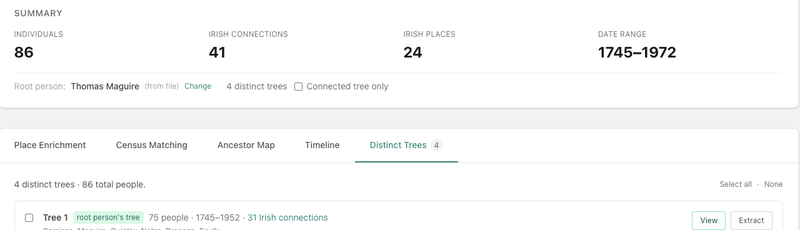
When you upload a GEDCOM file to the Irish Roots tools suite, the parser builds a complete relationship graph of every individual in the file. It then runs a connected-component analysis to identify which groups of people are connected to each other and which are isolated.
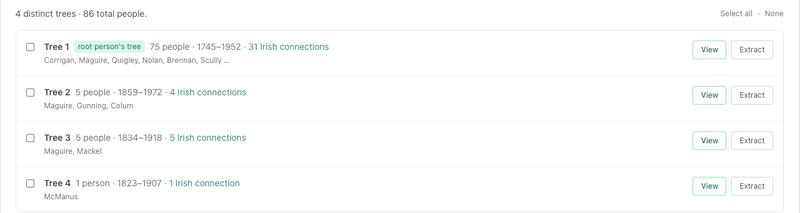
The results are shown in the Distinct Trees tab. Each tree is listed with its size, the date range of events it contains, the surnames present, and the number of individuals with Irish connections. The trees are sorted by size, largest first, so your main family line is typically at the top.
Viewing a Tree Before You Extract It
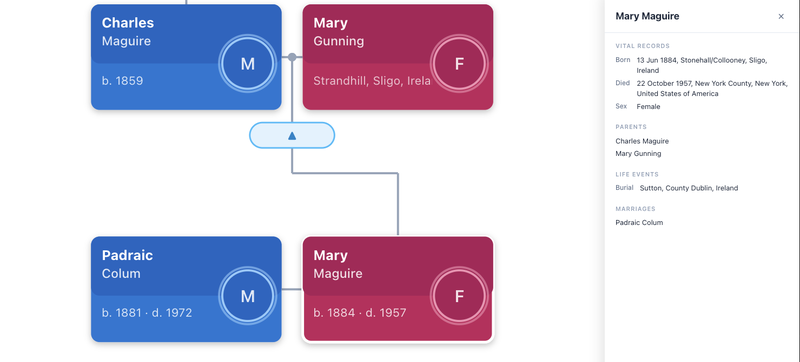
Before extracting or removing a tree, you can inspect it visually. Each tree in the Distinct Trees tab has a View button that opens a full-screen interactive family tree diagram. The diagram renders every individual and their relationships as an SVG tree. Click on any person card to see their details.
This is useful for quickly establishing whether a small disconnected group is genuinely a separate family, a data entry error that could be corrected, or a line you want to keep.
Extracting a Tree to Its Own File
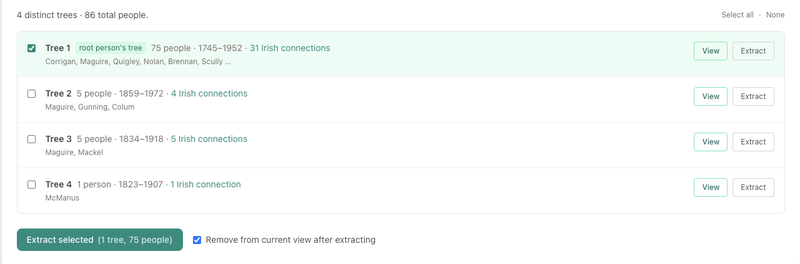
Once you have identified a tree you want to extract, click Extract. The tool immediately generates a new, valid GEDCOM file containing only the individuals and family records that belong to that tree, and downloads it to your device.
You can also select multiple trees at once using the checkboxes and extract them all in a single operation — each tree becomes its own separate file.
The option to Remove from current view after extracting is available on each extraction. When this is checked, the extracted tree is hidden from the current session — the individual count, map markers, and timeline all update to reflect only the trees that remain visible.
Downloading a Modified Version of Your Original File
Extracting a tree gives you the extracted group as a new file. But what about your original file? After removing one or more trees from view, a notice appears in the summary panel. Click Download modified .ged and you will receive a new GEDCOM file that is identical to your original, but with the removed trees completely stripped out — every individual record, every family record, and the header and trailer correctly preserved.
This is your cleaned main file, ready to re-import into Ancestry, FamilySearch, or any other platform. Your original uploaded file is never modified.

A Practical Example: Cleaning Up an Ancestry Export
- Export your tree from Ancestry. Go to your tree settings and choose Export tree. Ancestry will generate a .ged file and email you a download link, usually within a few minutes.
- Upload to Irish Roots GEDCOM Tools. Go to app.irishroots.ie/gedcom-tools and drag your file into the upload zone. Parsing is instant for files up to several thousand individuals.
- Check the Distinct Trees tab. If you see more than one distinct tree, click through each one. Identify which is your main family, and which are unconnected groups.
- Extract the secondary trees. Use the Extract button for each unconnected group, checking Remove from current view for each one you want to strip from your main file.
- Download the cleaned file. Click Download modified .ged. This is your cleaned main file.
- Re-import to Ancestry. Create a new tree on Ancestry and import the cleaned file. Your tree will now contain only the connected family you intended to research.
The entire process typically takes less than ten minutes. Ancestry provides no equivalent feature — the only way to remove individuals there is one by one, manually.
A process that would take days of manual deletion on Ancestry can be completed in minutes with the right tools.
Other Use Cases
- Separating maternal and paternal lines that have not yet been joined by a proven common ancestor.
- Sharing a branch with a cousin — extract just that branch as a clean GEDCOM file to share.
- Removing speculative DNA matches added as unconnected individuals before their place in the tree was established.
- Archiving a completed line to reduce the size and complexity of your working tree.
The tools are free to use at app.irishroots.ie/gedcom-tools. No account is required. If you have questions or feedback, get in touch.